Meta Ads Setup Guide
Create Your Business Assets
👉 Use a Facebook account that you’ve had before to reduce the chance of restriction (The account is more than 1 year).
Log in to your Facebook account.
On the left menu, click Pages.
Click Create New Page.
Choose Public Page
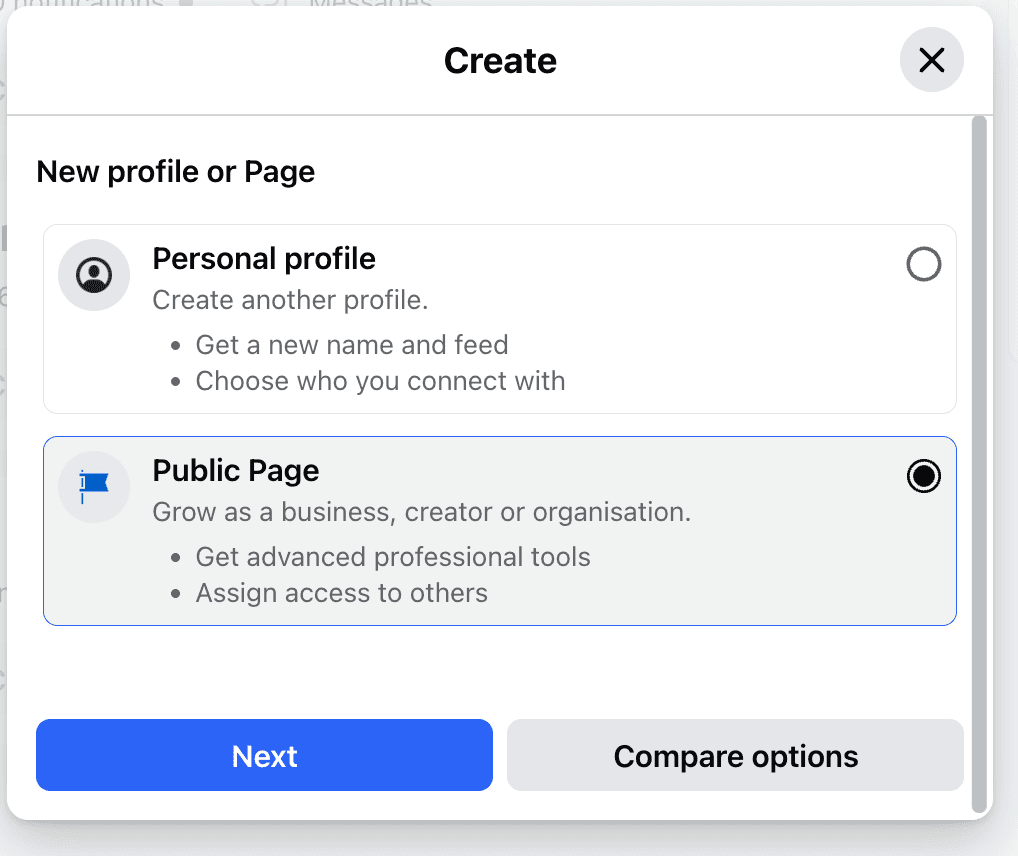
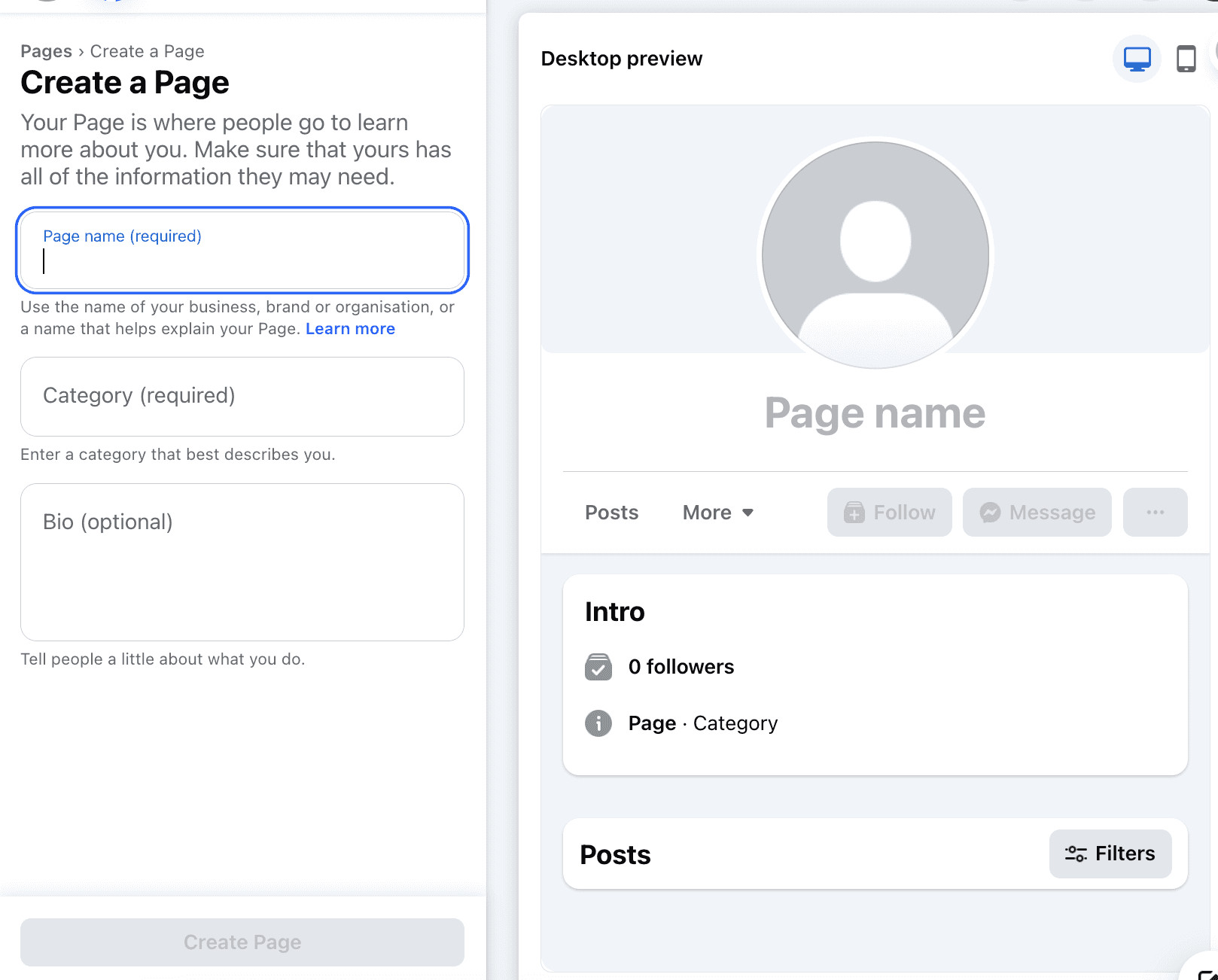
Fill in:
Page Name (e.g., your brand or business name)
Category (e.g., Clothing Brand, Beauty, Local Business)
Description (what your business does)
Click Create Page.
Add profile picture. For cover photo and business details you can add later
Step 2: Create a Business Manager (Business Portfolio)
Go to business.facebook.com while logged in.
Log in to your personal Facebook account. If you don't have an account, click Create a new account to sign up for one.
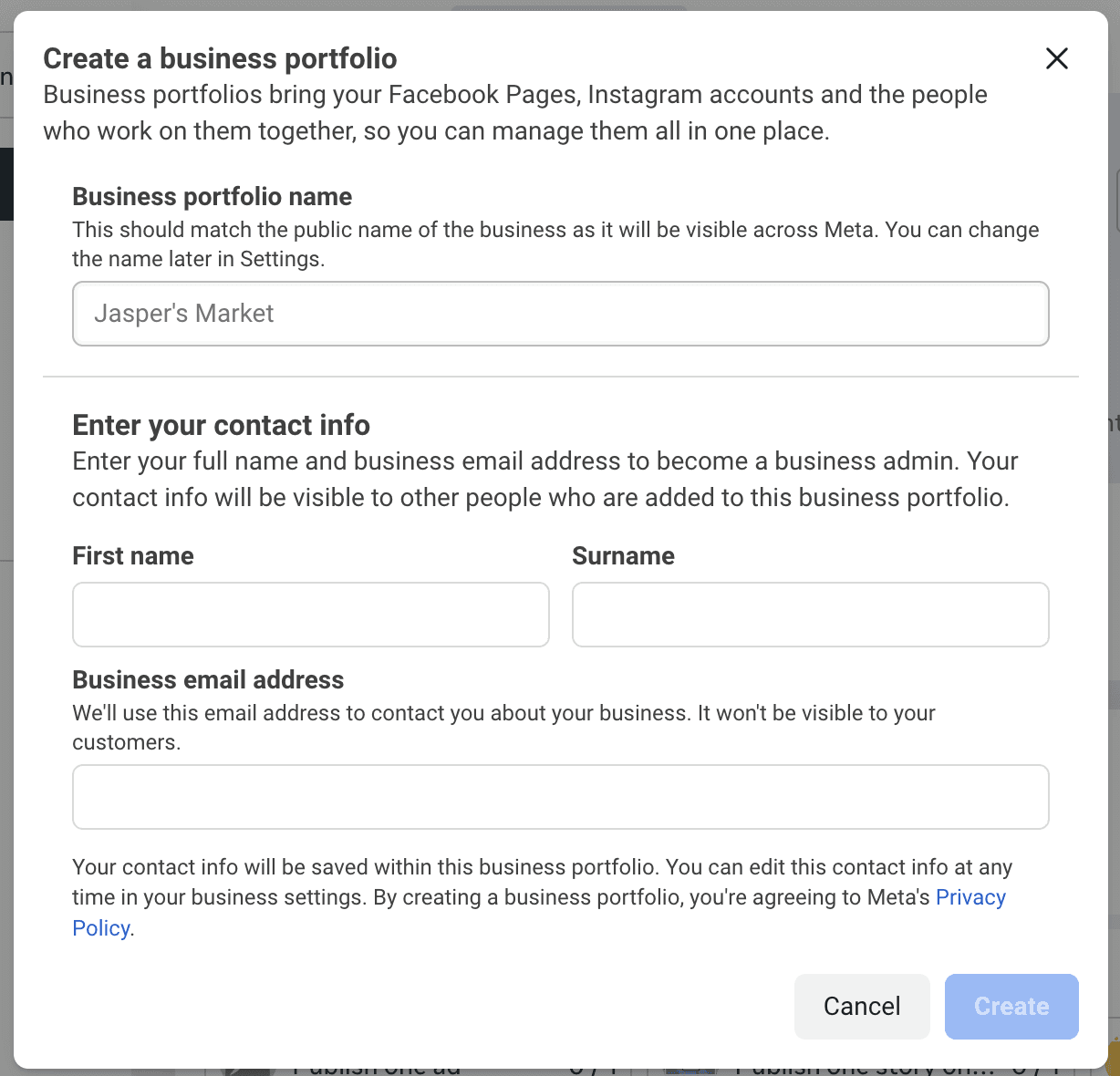
Click Create a business portfolio.
Enter your Business Name, Your Name, and Business Email.
Click Submit.
Your Business Manager is now created.
Step 3: Create an Ad Account inside Business Manager
Create Ad Account
Open Business Settings.
On the left menu, click Accounts → Ad Accounts.
Click the Add button.
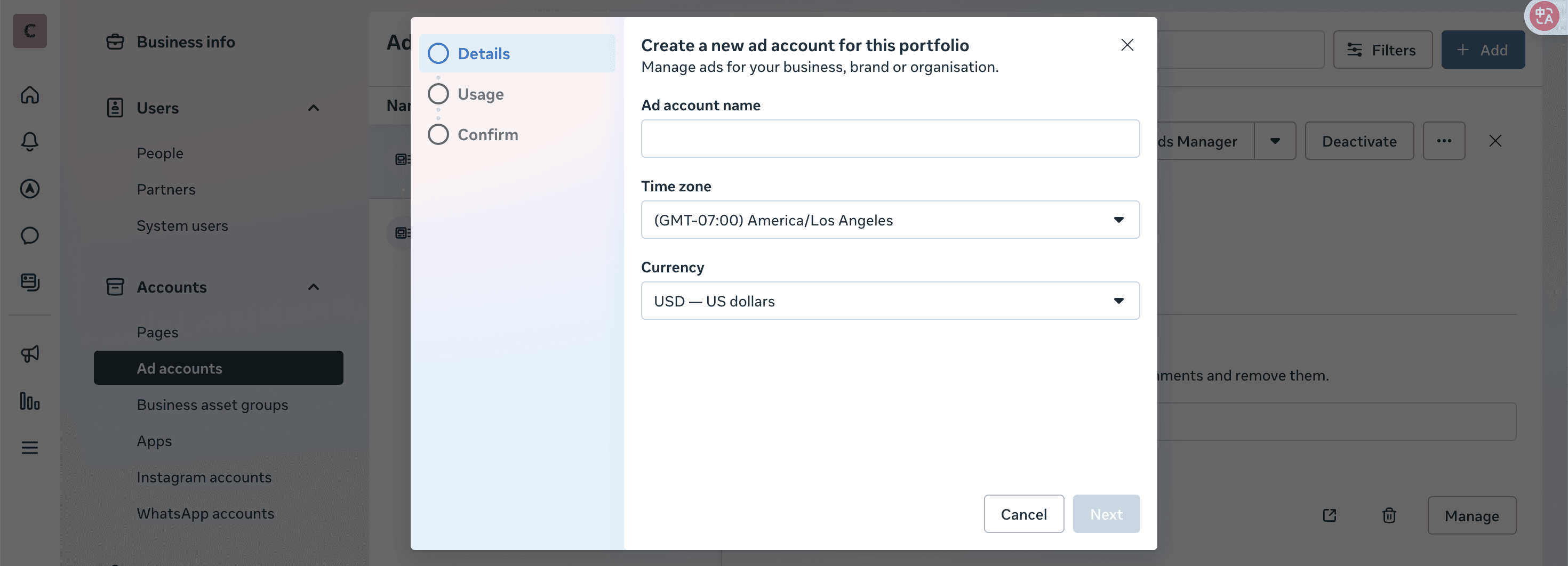
Select Create a New Ad Account.
Fill in:
Ad Account Name
Time Zone
Currency
Click Next.
Choose My Business as the owner of the ad account.
Click Create.
Connect Instagram to Your Ad Account
Log in to your Facebook account.
Open your business page.
Go to Settings.
On the left side, under Permissions, click Linked Accounts.
Choose Instagram.
Log in with your Instagram account and complete the steps.
Refresh the page → you’ll see the connected Instagram account.
Connect WhatsApp to Your Ad Account
Log in to your Facebook account.
Open your business page.
Go to Settings.
On the left side, under Permissions, click Linked Accounts.
Choose WhatsApp.
Add your active WhatsApp number.
Refresh the page → you’ll see the connected number.
Give Katalis Access to Your Business
If you already have your Page, Business Manager, Ad Account and Instagram follow these steps:
Click Business Settings.
On the left sidebar, click Partners.
Click Add.
Select Give a partner access to your assets.
Enter Katalis ID : 103903776092165.
Assign Katalis Full Control access to:
Page
Ad Account
Catalogue (if available)
Pixel (if available)
Instagram
Add Balance to Your Meta Ads
Open Ads Manager.
On the left sidebar, click Billing & Payments.
Make sure you’re using the correct Ad Account.
Add balance or payment method as needed.